
Pre-registration
Add a period of its own before registration, print one-time codes or show them as a QR on your phone, and approve the pre-registrations.
With pre-registration, selected people can register for your bazaar before registration opens to everyone. You add a period of its own before regular registration and hand out one-time codes: printed as cards or live as a QR code on your phone. Only people who redeemed a code can register during that period.
Typical occasions:
- A stand at another event, for example a mulled-wine stand at the Christmas market: anyone who spends a certain amount gets a card for the pre-registration. You’ll find an example on the blog: Collecting pre-registrations at the mulled-wine stand.
- Regular sellers who take part every year and shouldn’t have to race for a spot.
- Your helper team, who get to secure a spot before everyone else.
Before you start
- Only admins of your organization can print codes and show the QR on the phone.
- Pre-registration is an add-on at €9 per bazaar. It isn’t included in the Komfort plan either. The add-on prices are listed on the pricing page.
Adding the period
- Open your bazaar and go to Dates. How to get there is described under Edit a bazaar.
- Tap Add date and choose Pre-registration as the type.
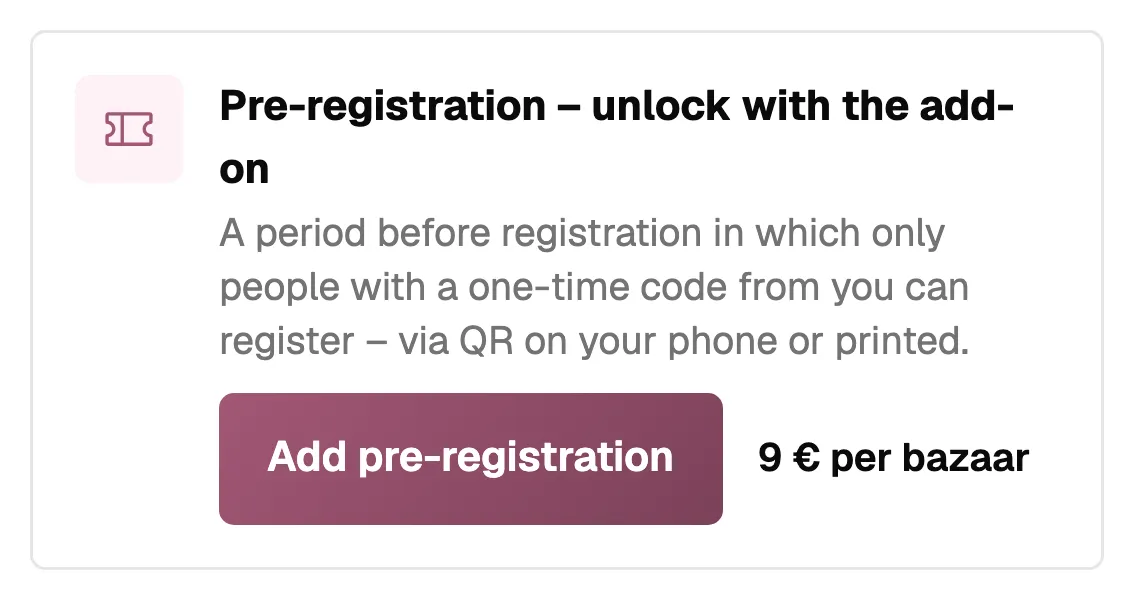
- The first time, “Pre-registration – unlock with the add-on” appears. Tap Add pre-registration to book the add-on.
- Give the date a name and enter the start and end. Tap Save.
A few rules apply to the period:
- A bazaar has at most one pre-registration period.
- The pre-registration has to end before regular registration starts.
- The period is visible to your team only. Everyone else still sees “Registration opens on …” with the start of regular registration.
Handing out codes
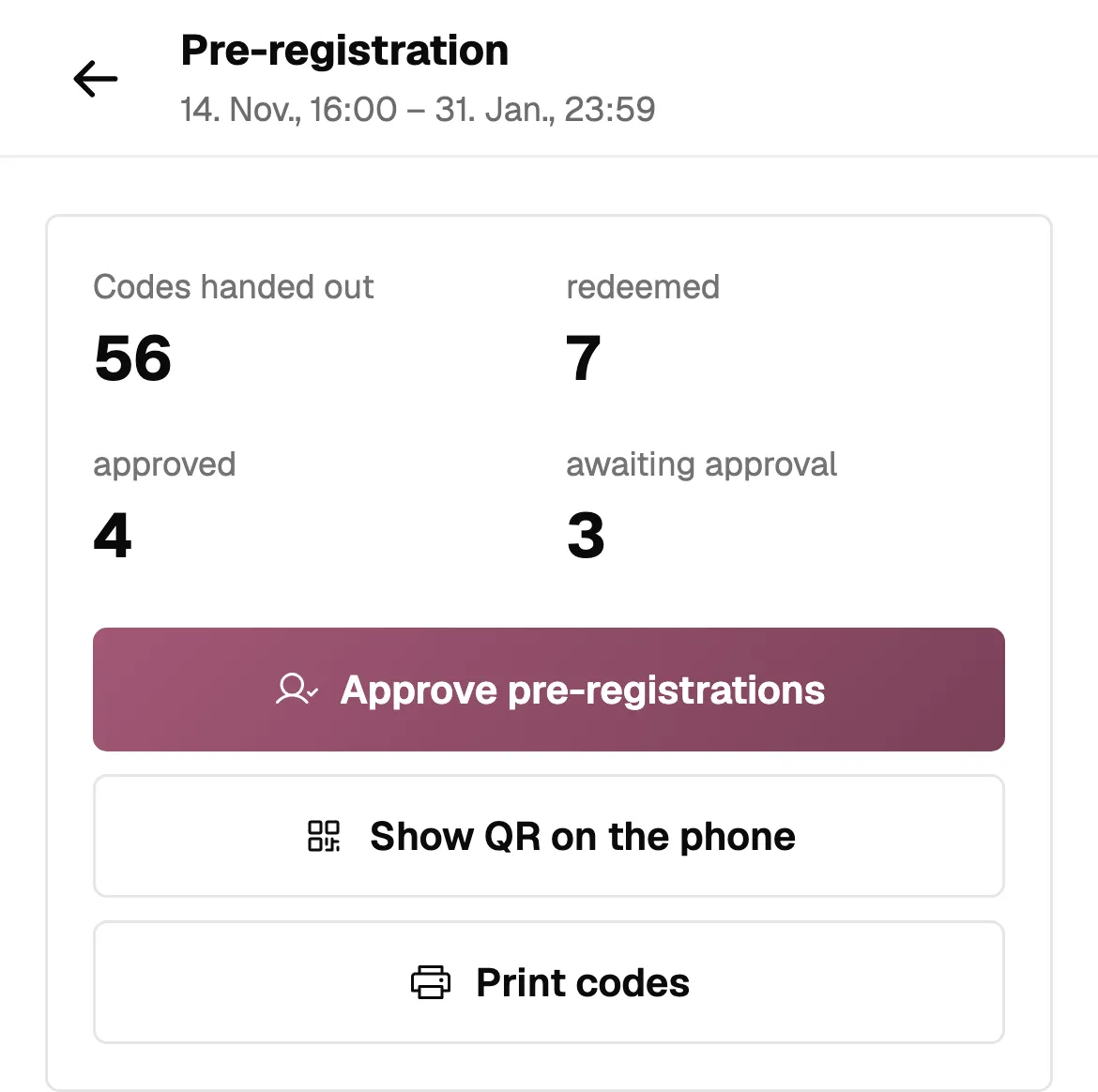
Under Manage bazaar you’ll find the Pre-registration tile in the Preparation phase. It shows how many registrations are currently waiting for your approval. Tap it to open the Pre-registration overview with the period and the figures: how many codes handed out, redeemed and approved, and how many are awaiting approval.
Printing codes
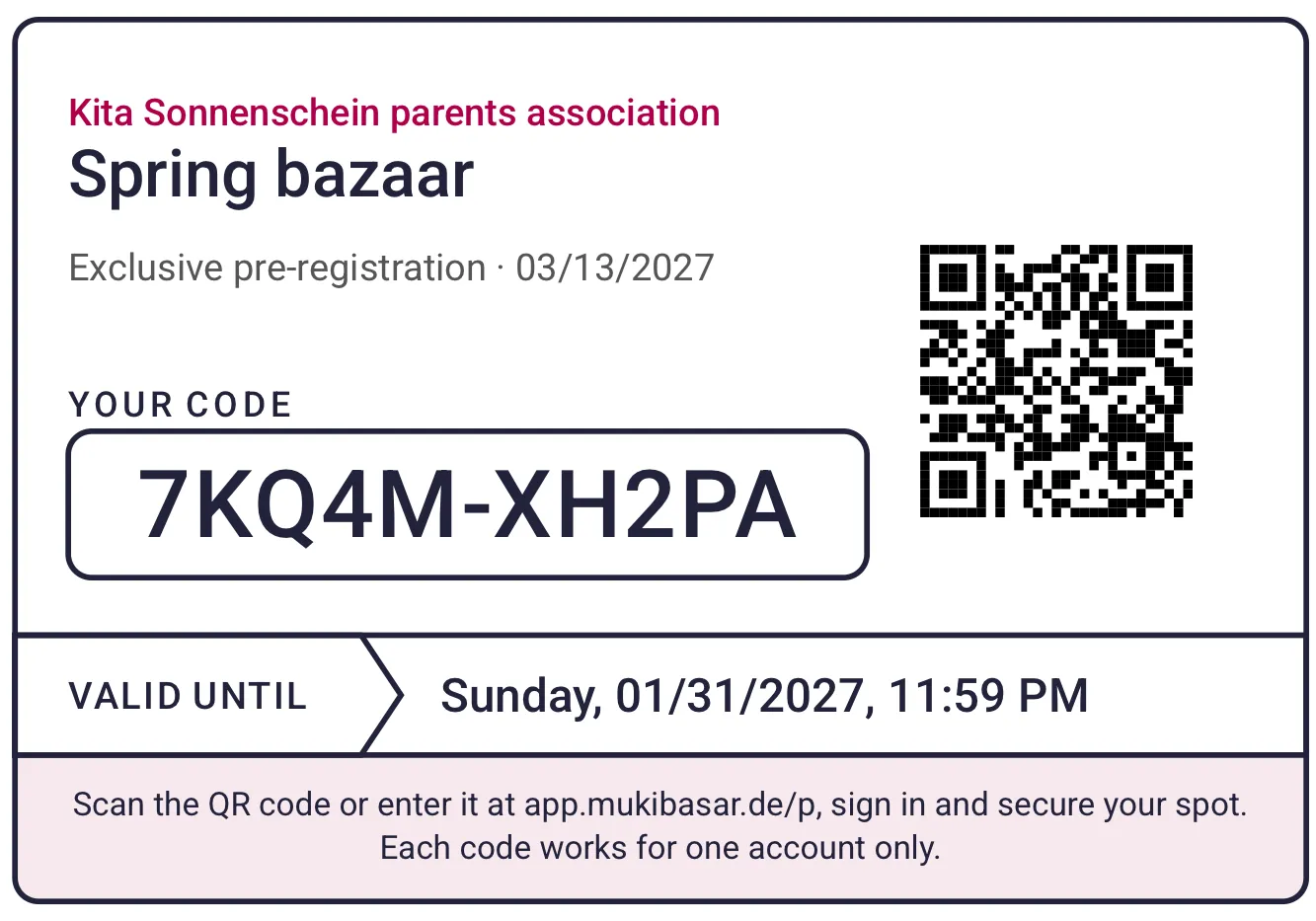
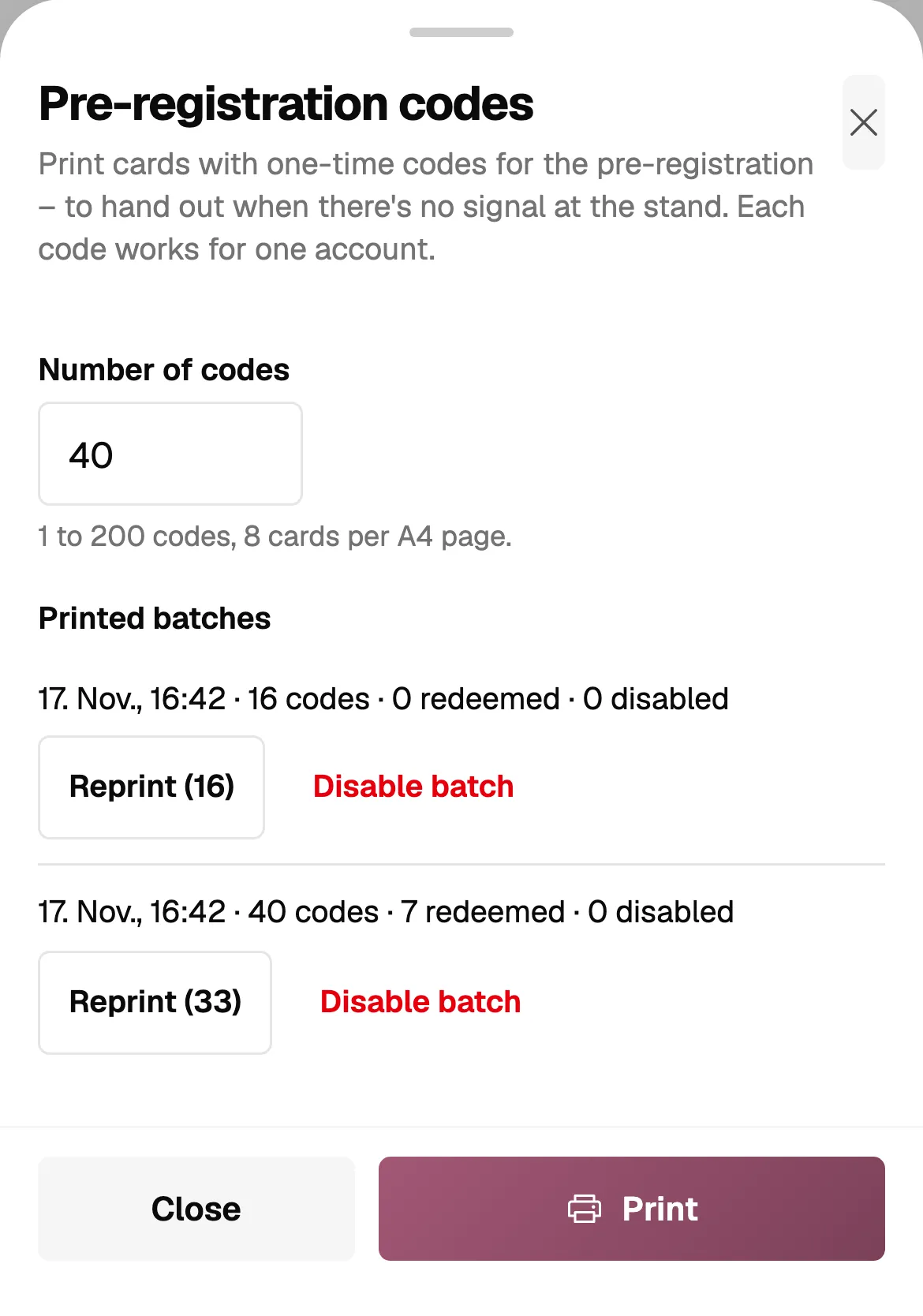
In the overview, tap Print codes, choose the number of codes (1 to 200) and tap Print. You get a PDF with 8 cards per A4 page to cut out. Each card shows your bazaar, the code, a QR code and how long the code is valid.
Printed cards need no internet. So they’re the right choice when there’s no signal at the stand or things need to move fast.
Showing the QR on your phone
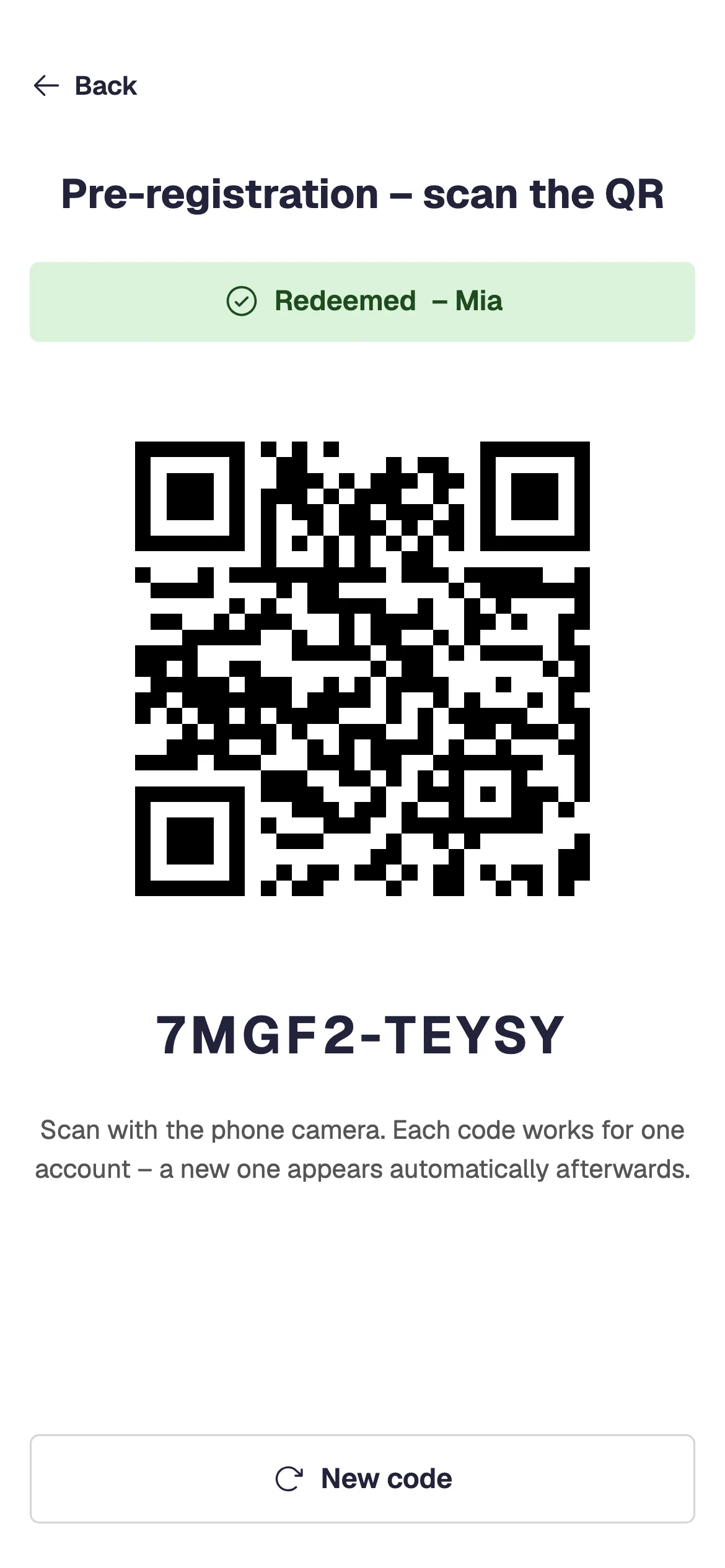
In the overview, tap Show QR on the phone. Your phone then always shows exactly one code. As soon as someone scans it, “Redeemed” briefly appears with their first name, followed right away by the next code.
- The code changes by itself every few minutes. A photo of the screen is therefore no use.
- New code invalidates the code on screen immediately and fetches a new one.
- Your phone needs internet for every new code. Without a signal, hand out printed cards.
Approving pre-registrations
Anyone who redeemed a code and registers lands in your registrations as usual, marked Pre-registration. In the Pre-registration overview, tap Approve pre-registrations to see and confirm exactly those registrations.
Reprinting or disabling printed batches
Every print run is a batch. Under Reports → Pre-registration codes, Printed batches shows how many codes of each batch were redeemed or disabled.
- Reprint prints the batch’s codes that haven’t been redeemed yet once more, for example when cards got lost.
- Disable batch invalidates all of a batch’s codes that haven’t been redeemed. Codes that were already redeemed stay valid.
What sellers see
Anyone who gets a card scans the QR code with their phone camera or enters the code at app.mukibasar.de/p. This needs a free MukiBasar account. Anyone without one creates it right there, and the code waits until they’re done. Register now then takes them to the registration. What this looks like for sellers is described under Register for a bazaar.
Good to know
- One code, one account: A redeemed code belongs to that one account for good. It can’t be passed on or redeemed twice.
- No gap: If there’s time between the end of the pre-registration and the start of regular registration, nobody can register during it.
- Expiry: Printed codes are valid until the pre-registration ends. If you move the end, the validity of the codes that haven’t been redeemed moves with it.
- Spots stay limited: The maximum number of sellers applies during pre-registration too. A code is an earlier chance, not a guaranteed spot.