
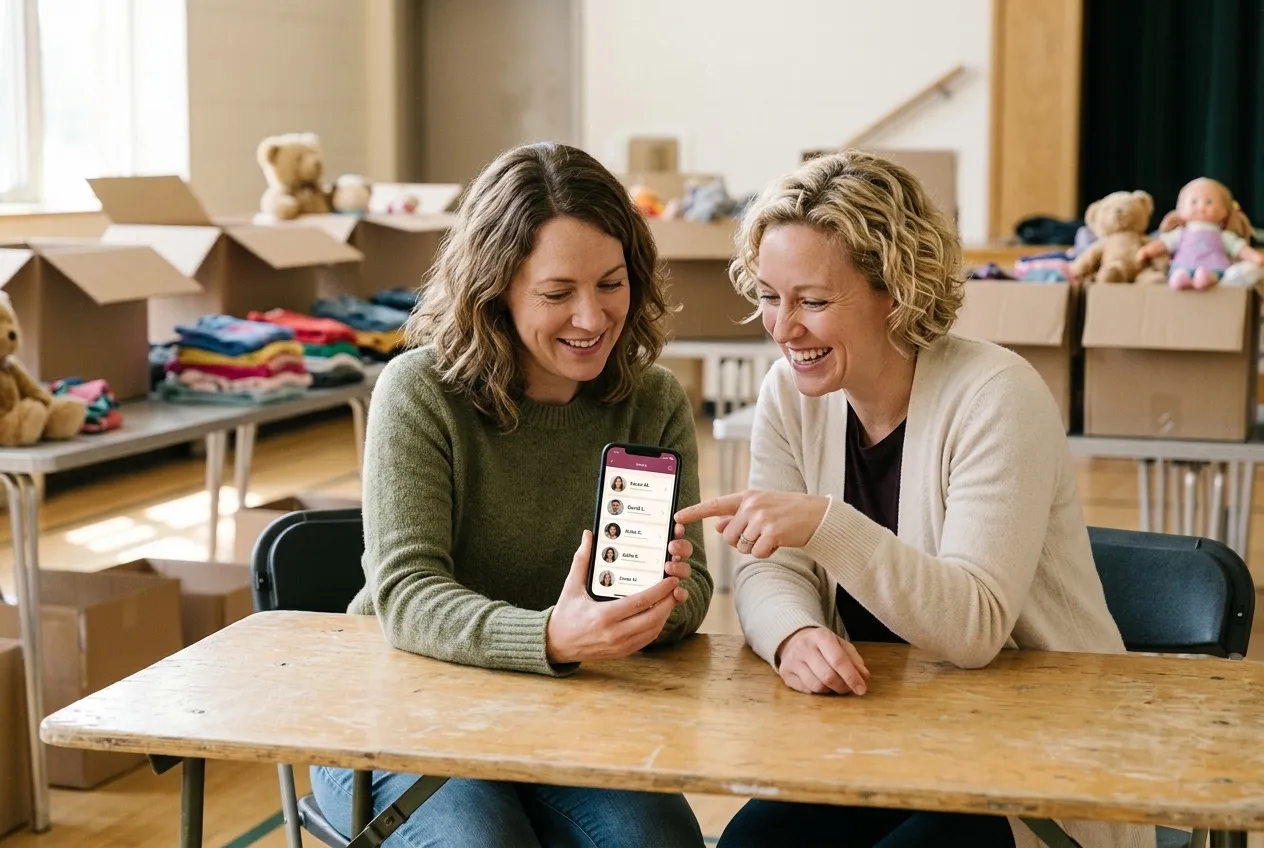
In short: In MukiBasar, tap the circle with your initials at the top right, choose Profile and then the camera icon on your profile picture. Only signed-in users see your photo, in your registrations and in chat – and it helps organizing teams recognize you in a list of 150 names.
Today I have a small request instead of a big topic: if you feel like it, add a profile picture to MukiBasar. 😊
It sounds like a detail – and technically it is one. For the people organizing a bazaar, it still makes the preparation noticeably more pleasant.
Why does a profile picture help the organizing team?
A bazaar with 150 sellers starts out as a long list of names and numbers. Whoever works through the registrations sees the same pattern row after row – and still has to remember who is behind each one.
A profile picture breaks that list open. In the registration overview there’s a small round photo next to every name, and suddenly the row is a person again. In teams where many sellers are joining for the third or fourth time, you simply recognize each other faster.
The same goes for the chat: when the organizing team messages you, or you ask a question, everyone can see at a glance who they’re talking to.
What’s in it for you
You’re recognized more easily. Especially with organizers you’ve joined several times before.
It makes MukiBasar more personal. There’s a real person behind every registration, not an anonymous seller number.
You’re helping volunteers. Almost every bazaar is carried by parents in their spare time. The easier it is to match a registration to a face, the fewer follow-up questions land on their plate.
How to add your picture
- Tap the circle with your initials in the top right corner.
- Choose Profile from the menu.
- Tap the small camera icon at the edge of your profile picture and pick a photo.
That’s it – the picture is saved right away. If you want to change it later, just upload a new one in the same place.
Who can see your profile picture?
Your photo is not sitting out in the open on the internet. Search engines don’t find it and it isn’t linked publicly anywhere – it’s only visible inside MukiBasar to signed-in users, in exactly the places your name shows up anyway: your registrations and the chat.
With MukiBasar: A profile picture is entirely optional. Without a photo, MukiBasar simply shows your initials – everything works just as well.
And if you do decide to add one: it doesn’t have to be a perfect portrait. An ordinary, friendly photo is plenty.
Thank you for using MukiBasar and for helping pass on children’s clothes, toys and much more in a simple and sustainable way.
Best regards Martin